Backup Divi Desktop Wallet to USB Stick or Drive (macOS / OSX)
⚙️ What You’ll Need:
✅ One USB stick or external hard drive with at least 1 GB of free space
✅ A few minutes and focus—you’re backing up your wallet files.
✅ Store the backup somewhere safe and secure.
A secure, offline USB backup (preferably with duplicates) gives you a “frozen-in-time” copy of your wallet for easy migration, crash protection, and faster recovery than seed phrases alone—which, while mandatory, can take extra time or effort—making a USB backup a real time- and headache-saver.
Before You Begin: Prepare Your Backup Drive
Insert your USB stick or external hard drive.
(Note: Your USB drive may have a different name. The example below is for illustration only.)Create a dedicated folder for Divi backups, for example:
DIVI-BACKUP
Inside that folder, create a subfolder with the current month and year, for example:
July-2027
Your folder structure should look like this:
Desktop
└── USB
    └── DIVI-BACKUP
        └── July-2027
You will be placing the copies of your wallet files and folders (from the steps below) into the Month-Year folder.
Six (6) Simple Steps
1. Exit Divi Desktop Wallet Completely
Do not minimize it—make sure it is fully closed.
Click X to close Divi Desktop Wallet and select Exit to close the application completely.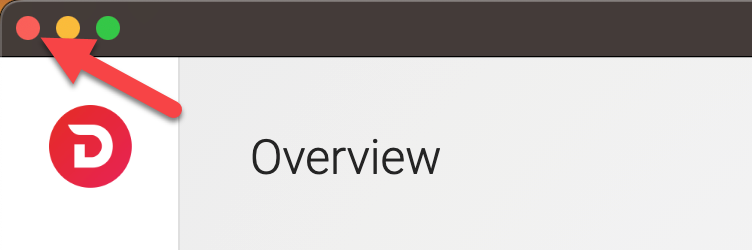
2. Open the Go to Folder Box
Press ⌘ Command + Shift + G on your keyboard simultaneously.
This opens the Go to Folder window.
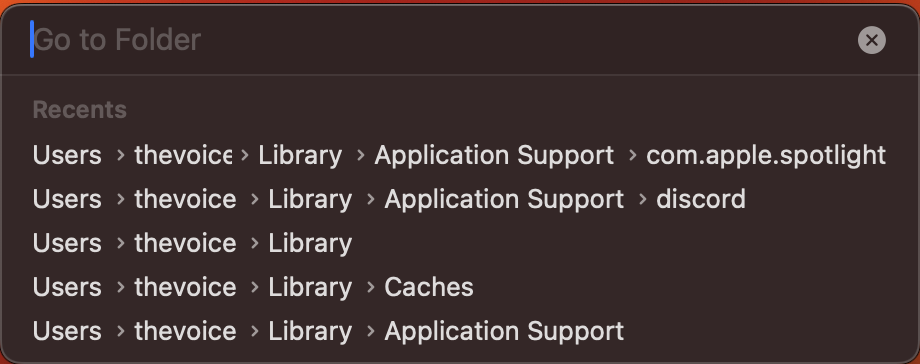
3. Enter This Path and Press Enter:
~/Library/Application Support/
This takes you directly to the Application Support folder.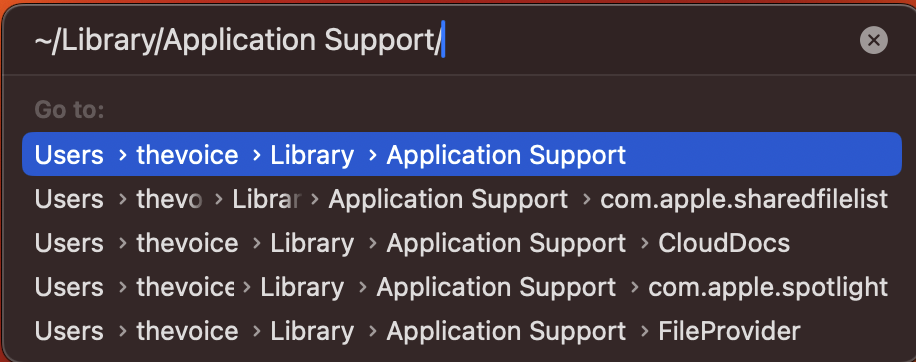
4. Find and Open the Folder Named DIVI
NOT Divi Desktop
You're looking for the folder just named DIVI.
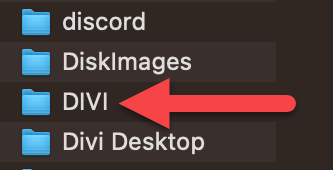
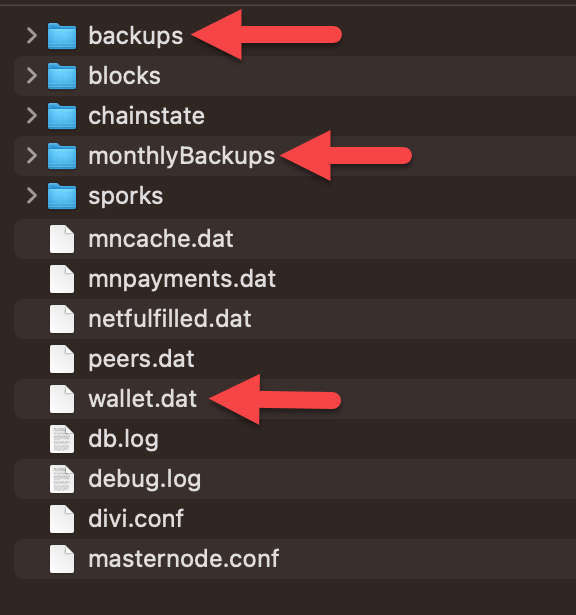
5. Inside the DIVI Folder, Locate and COPY These Items:
wallet.dat(this holds your actual wallet data)backups(folder of auto-generated backups)monthlyBackups(longer-term backups)
Important: Do not move them—only copy.
6. Paste into Your Prepared Folder on the USB Drive
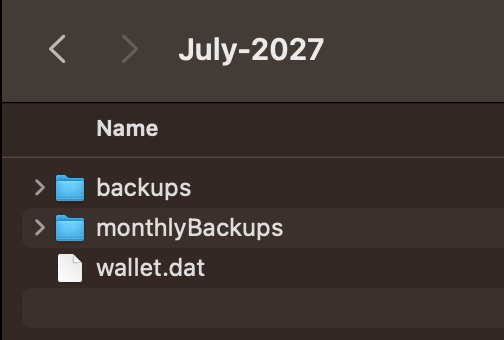
Example path:
Desktop
└── USB
    └── DIVI-BACKUP
        └── July-2027
Paste all three (3) items into that folder.
✅ That’s It! You’ve Backed Up Your Wallet
Keep this USB backup safe and stored offline.
If your Mac crashes or you migrate to another machine, or you lose your seed words, this is your lifeline.
This is a "Satoshi Backup"
Final Reminder
If you lose your wallet files or seed words, you lose access to your Divi.
Backups aren't optional—they're your responsibility. There’s no reset button.
Was this article helpful?
That’s Great!
Thank you for your feedback
Sorry! We couldn't be helpful
Thank you for your feedback
Feedback sent
We appreciate your effort and will try to fix the article